Scan a QR code and pair
Choose a device, scan its QR code to fill the address and PIN, then confirm pairing. A virtual camera reads a live laptop receiver’s QR code in this demo; the connected receiver then appears in history.
Cast to TV & laptop
Bring your video to a bigger screen, with playback controls on your phone.
Choose a device, scan its QR code to fill the address and PIN, then confirm pairing. A virtual camera reads a live laptop receiver’s QR code in this demo; the connected receiver then appears in history.
Screenshots
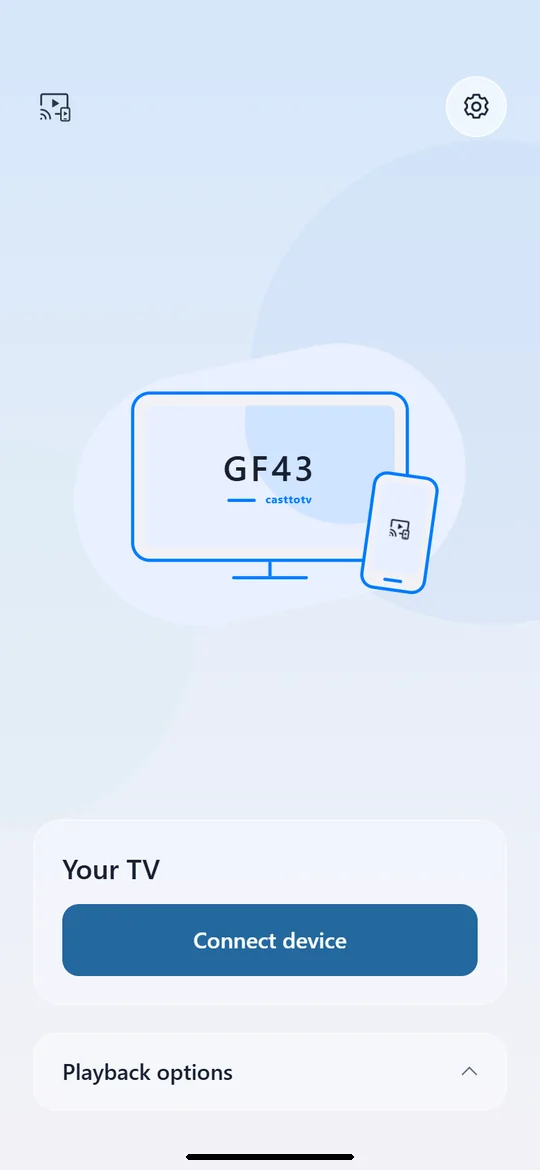
Choose a device to begin
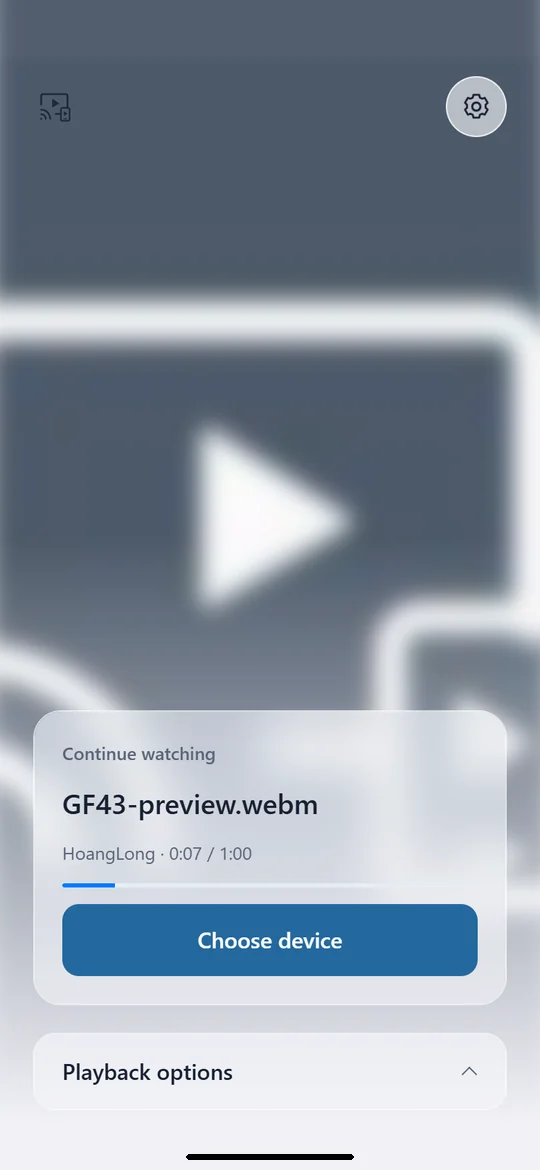
Pick up where you left off
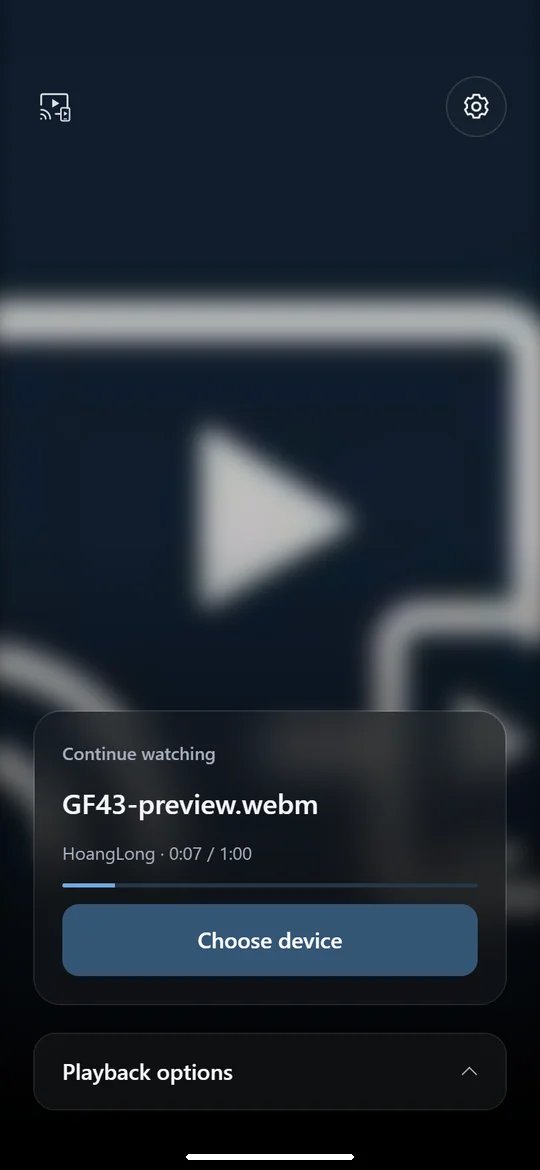
Continue watching in dark mode
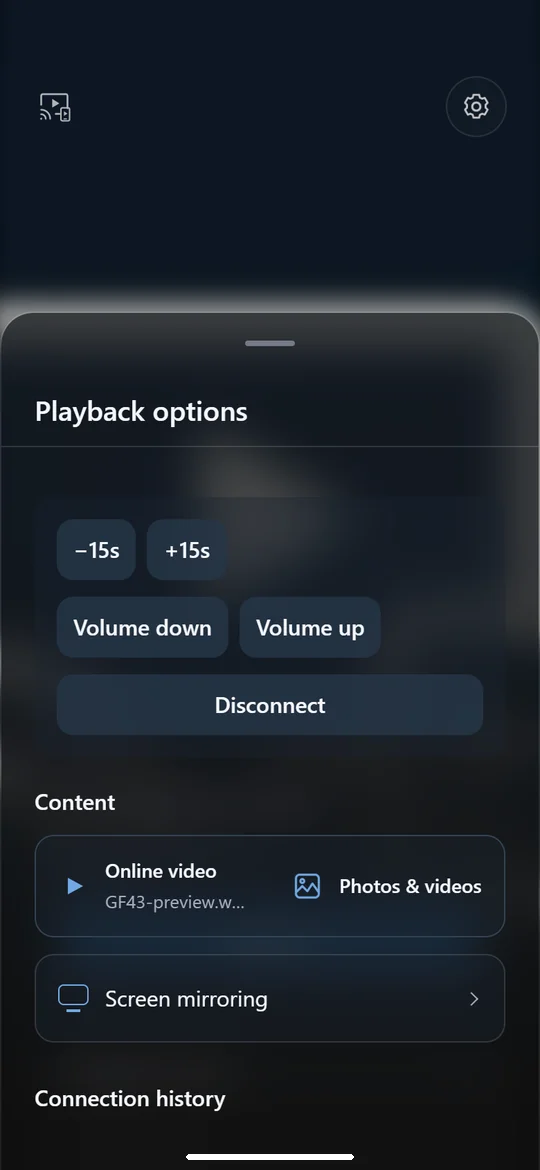
Seek, adjust volume and disconnect
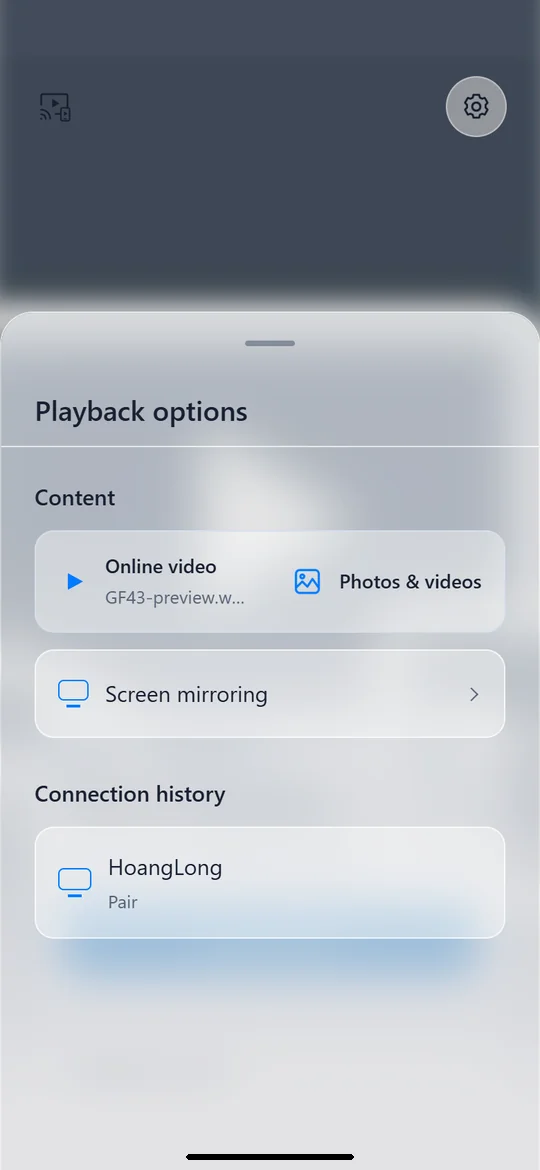
Find your previous receivers
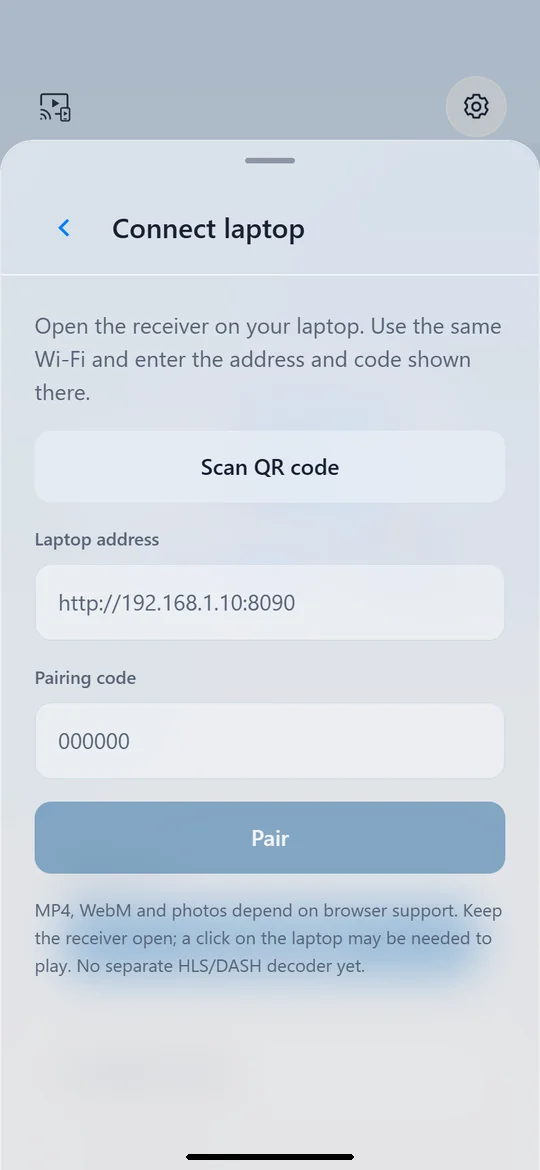
Pair by QR code or PIN
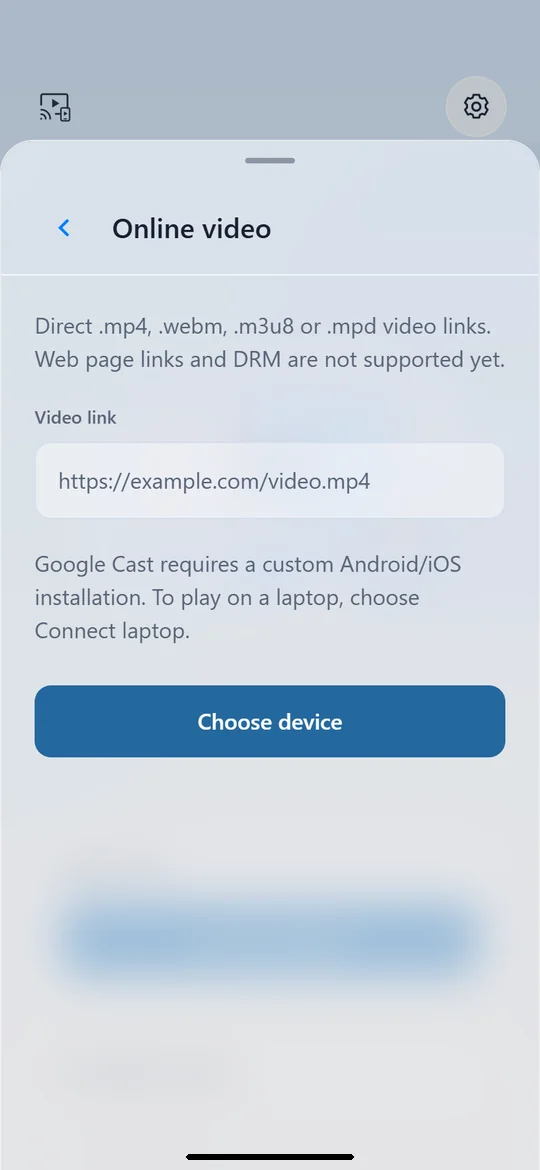
Prepare a direct video link
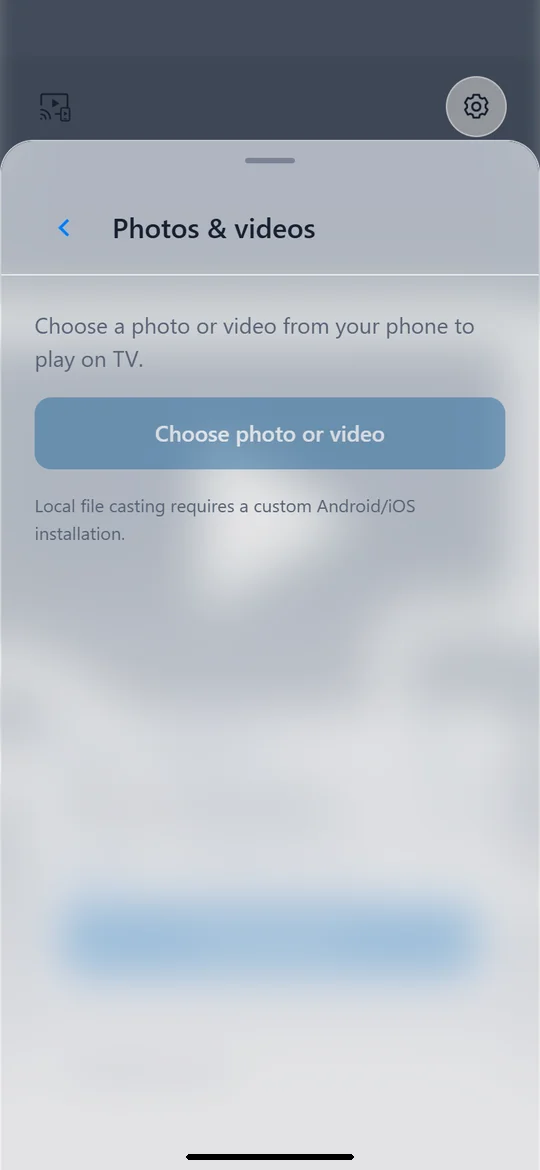
Phone installation for photos and videos
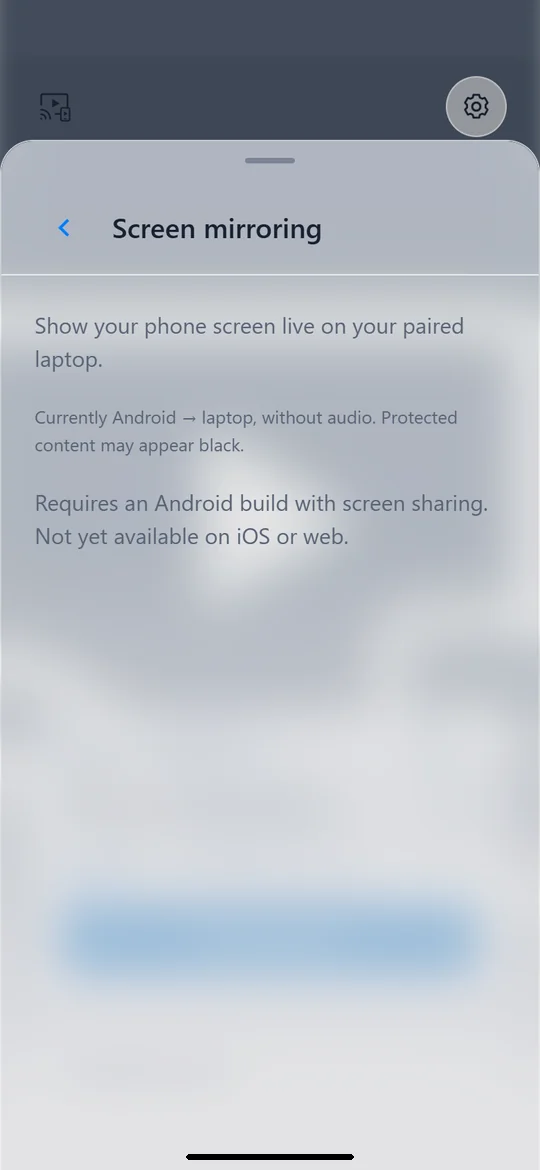
Android screen sharing, without audio
About
Prepare a direct video link, choose a receiver and start playback when you are ready. casttotv brings connection, playback controls and your resume point together in one place.
Continue watching keeps your last video, its playback position and the receiver name on your phone. Return to the app, choose your receiver and tap resume. Reopening the app does not start playback automatically.
Pause or resume, skip back or forward 15 seconds, adjust the volume and disconnect from the playback panel. Controls follow the receiver’s reported state. Resume points are kept for supported direct video links, not temporary local file-sharing links.
Open the casttotv receiver on your laptop and enable its receiving screen. Use the same Wi-Fi network, then scan its QR code or enter its address and six-digit pairing code on your phone.
Pair your laptop, open Screen mirroring and approve the Android screen-sharing prompt. Your screen is sent to the paired laptop over the local network. This mode currently has no audio; protected content may appear black.
The native app includes Google Cast controls and a picker for photos and videos. Direct video links can use MP4, WebM, HLS or DASH; playback depends on the receiver and media format. A YouTube page or another website URL is not a direct video link.
Choose Light or Dark in Settings, or follow your device’s appearance. The home screen, playback panel and saved video controls adapt to your choice. You can switch between Vietnamese and English in the same place.
Choose a photo or video with the phone’s system picker, or share one file or a direct video link into casttotv from another app. Local media is served over your Wi-Fi network, without a cloud upload. Keep casttotv open while sharing a local file; leaving the app or changing networks stops that sharing session.
Laptop video playback and Android screen mirroring have been tested on a physical Android phone. Google Cast playback on a real TV, iOS and local photo/video casting still need device validation. Google Cast requires a native installation; the web preview does not connect to TVs.